
The record book for Roblox staff teams.
Shifts, moderation history and applications for your Roblox group and Discord server — in one place, and tied to the real accounts behind them.
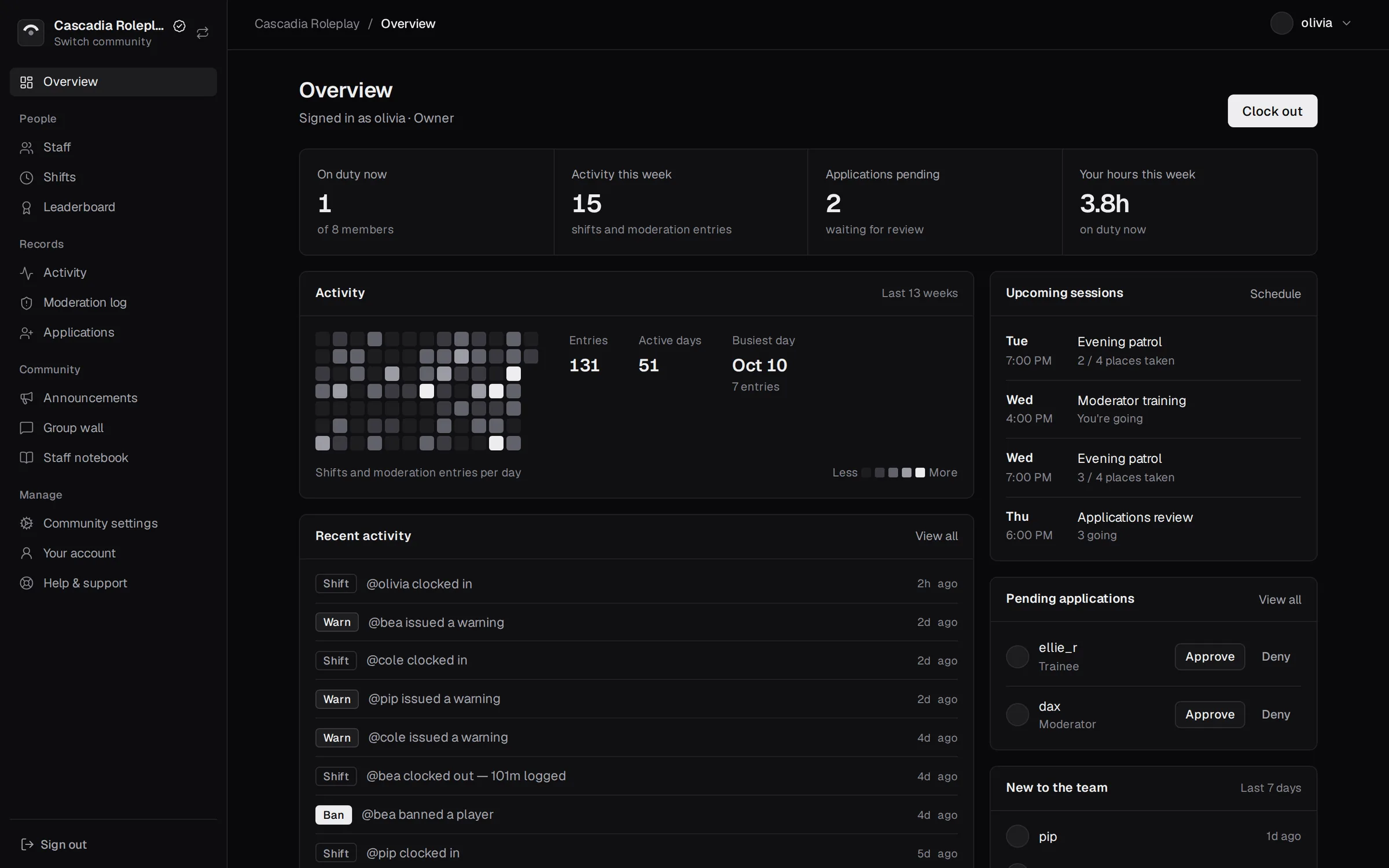
What it keeps track of
Four things every staff team needs to keep straight, without a pile of spreadsheets and pinned messages.
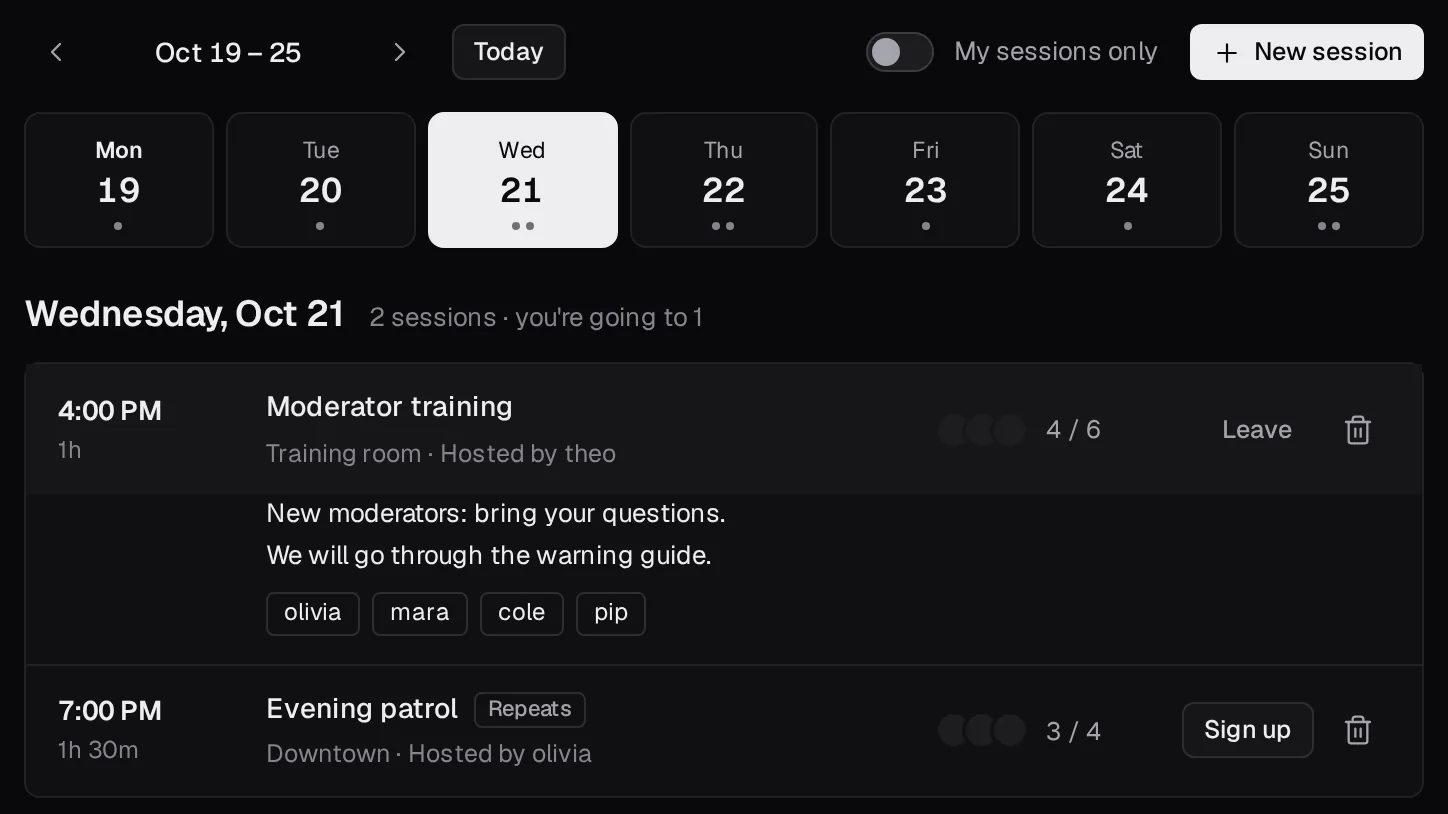
Plan the week. Track the hours.
Managers schedule sessions, one-off or repeating, and staff sign up from a week view, with places limited if you like. Staff clock in and out, and Klyro keeps each person's weekly hours and shift history, with time-off requests handled in the same place.
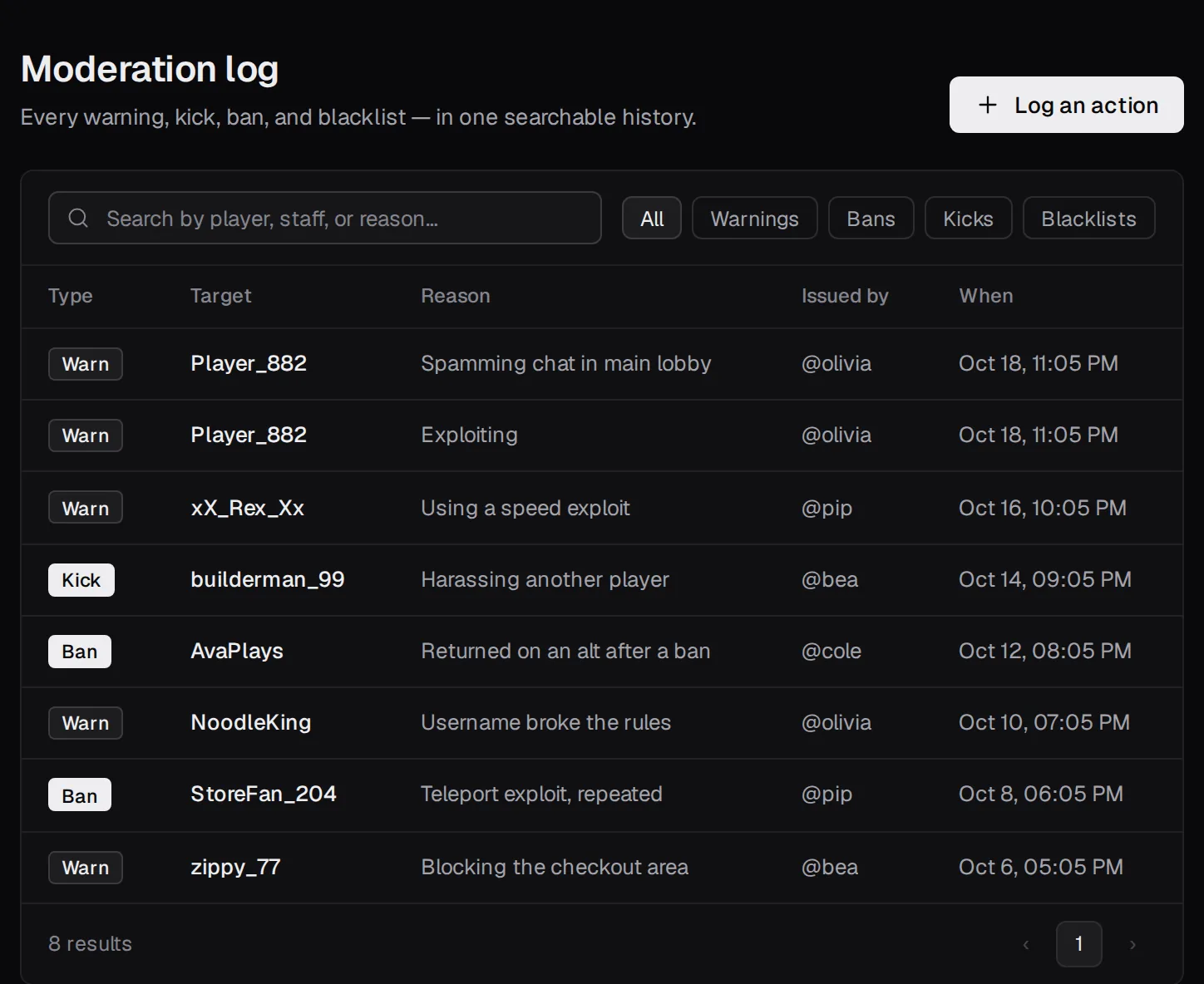
What happened, and who did it.
Log every warning, kick, ban and blacklist with the player, the reason and the staff member who issued it. Search and filter the whole history, and open any staff member's profile to see the actions they've taken.
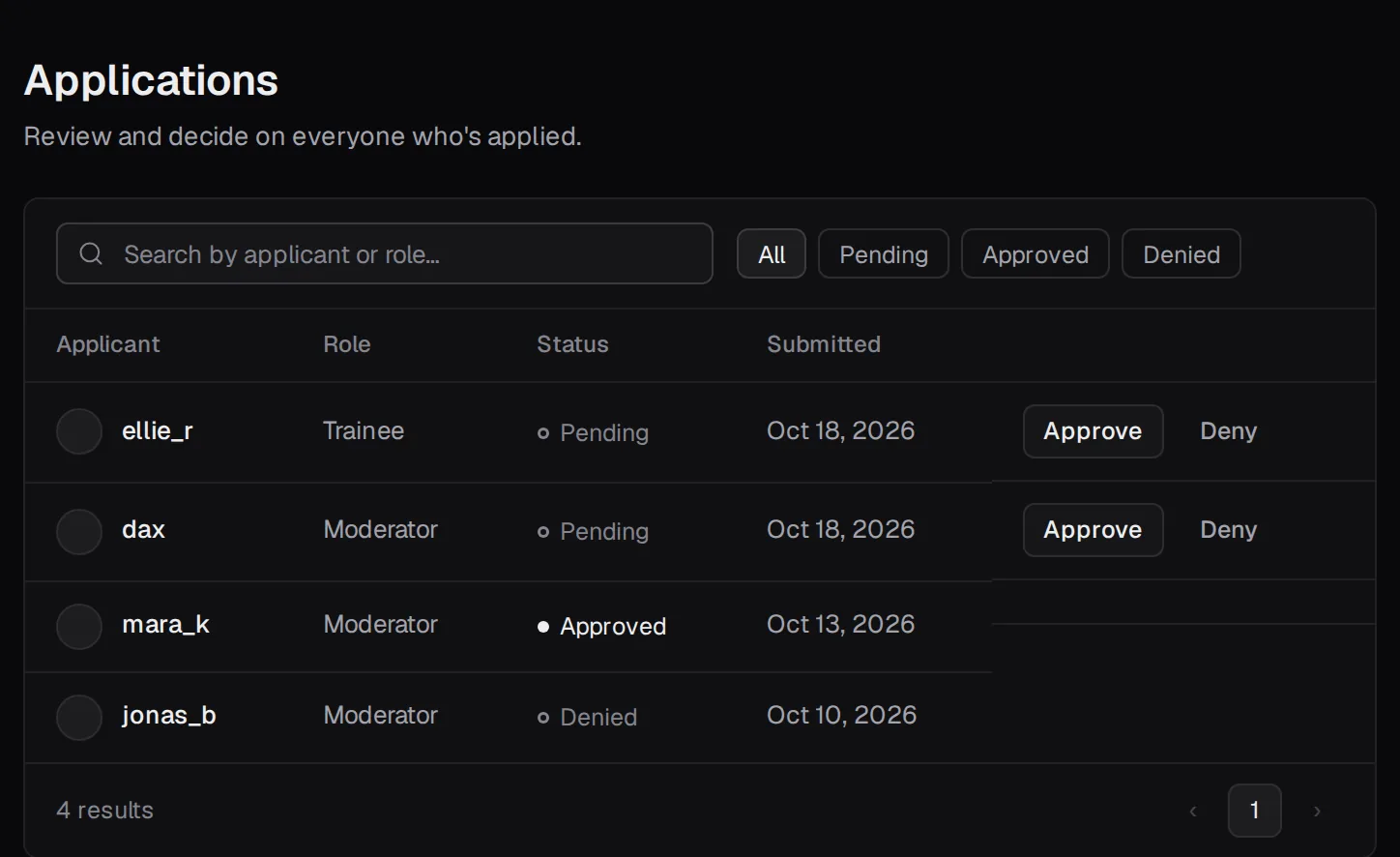
Who's applying.
Publish an application form with your own roles and questions, and anyone signed in to Klyro can apply. Or record applications yourself. Review them as a team and approve or deny each one with a click.
Tied to the real server and group.
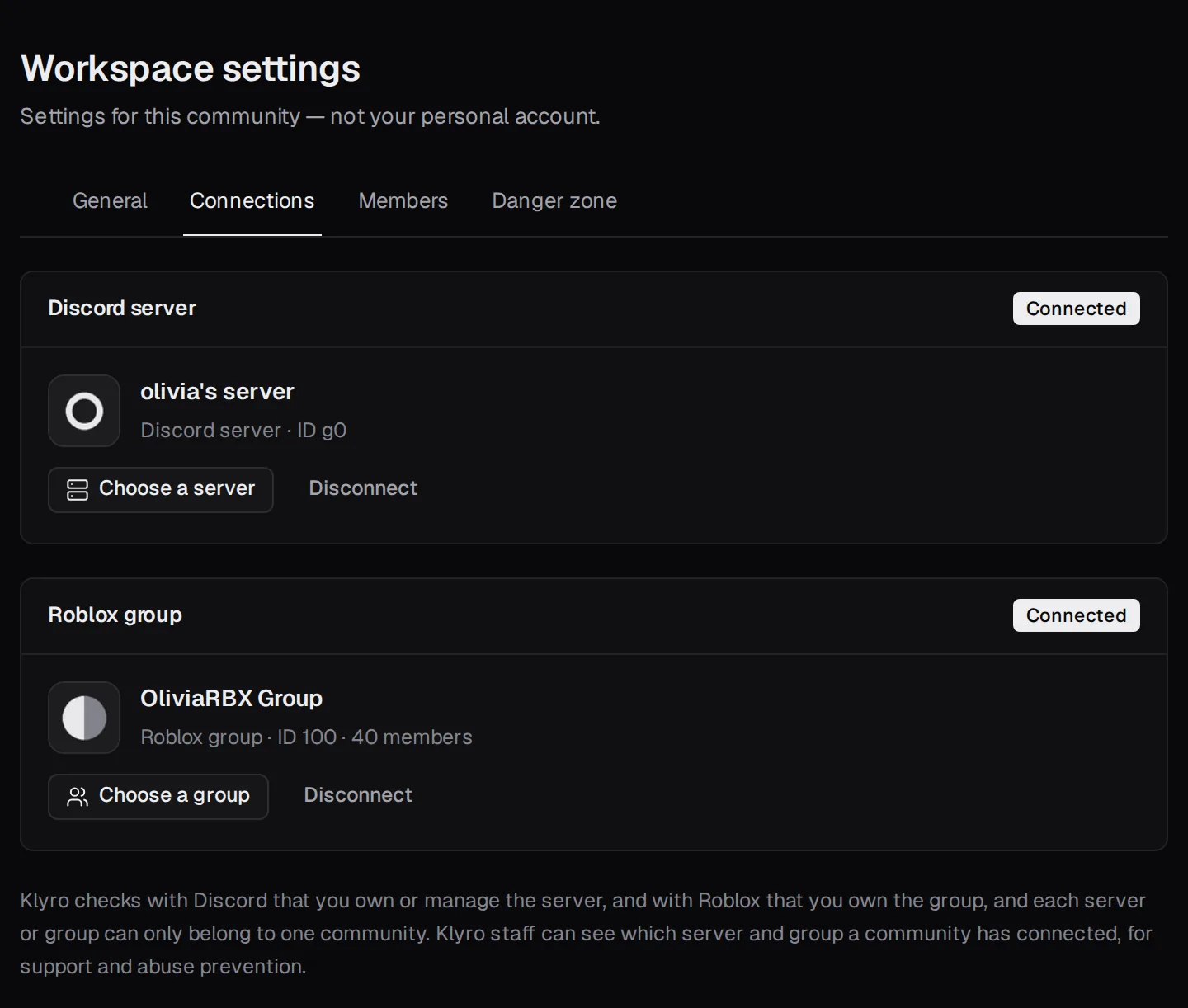
Connect your Discord server and your Roblox group. Klyro checks with Discord that you own or manage the server, and with Roblox that you own the group (or, if you only manage it, that you can edit it), so nobody can claim a server or group they don't control — and each one can only belong to a single community.
The details
Roles, permissions and invite codes
Owner, Senior Staff and Staff, with permissions you set for each role or for individual people. Share an invite code to bring people in.
Attendance, notes and promotions
Mark who turned up to each session, keep private notes about staff, and keep a record of every promotion with the reason.
Weekly digest
The week's hours, sessions, attendance, moderation and applications on one page, with a summary you can copy into Discord.
Real accounts only
To clock in or log an action, staff link both their Discord and Roblox accounts, so every record points at a real person.
A place to talk
Announcements, a group wall, a staff notebook and a shared team note — all inside the community.
Time zones and targets
Set your community's time zone and a weekly hours target. Sessions show your community's time next to each person's own.
Time off
Staff request time away, managers approve it, and the roster shows who is on leave. The reason stays private to the person and managers.
Tasks and a handbook
A task board for assigning work, and a handbook of rules and guides. Some pages everyone must acknowledge, and again whenever they change.
Polls, kudos and training
Ask the team with polls and anonymous surveys, thank each other with kudos, and bring new people up to speed with onboarding checklists.
Incidents and ban appeals
Report problems and track how they're handled, keep a watchlist, and let punished players appeal through a link you share. Their appeal appears beside your moderation log.
Calendar, swaps and insights
One calendar for events, sessions and time off, session swaps with optional approval, automatic achievements, and trends in hours and moderation over time.
Meetings, check-ins and availability
Write up meetings and turn action items into tasks, ask for a short weekly check-in, and see when most of the team is free to schedule sessions.
Promotions, goals and an audit trail
Set the bar for a promotion and see who meets it, track community goals that measure themselves, review who changed what, and export your records as CSV.
Your data stays yours
Export your account data or delete your account any time from settings.
Up and running in three steps
Create a community
Sign up with Discord or a username, then name your community. You become its Owner.
Connect Discord and Roblox
Link your accounts, then pick the Discord server and Roblox group your team runs.
Invite your staff
Send them your invite code. They sign up, join, and start clocking in.